How to add and style a custom slider in Webstudio
Learn how to add a responsive, customizable content slider to your Webstudio site with Drevo Library. Copy, paste, and customize with ease.
A content slider is a fantastic way to showcase multiple pieces of content, whether it's blog posts, testimonials, or product features, in a clean and organized manner. This tutorial will walk you through how to add a responsive and highly customizable content slider from Drevo Library to your Webstudio website.
The Easiest Way to Get Started
You can have a fully functional, beautiful slider on your site in under a minute:
Copy the slider component from the Drevo Library page.
Paste it directly into your Webstudio project.
And that's it! You'll have a functioning slider ready for your content.
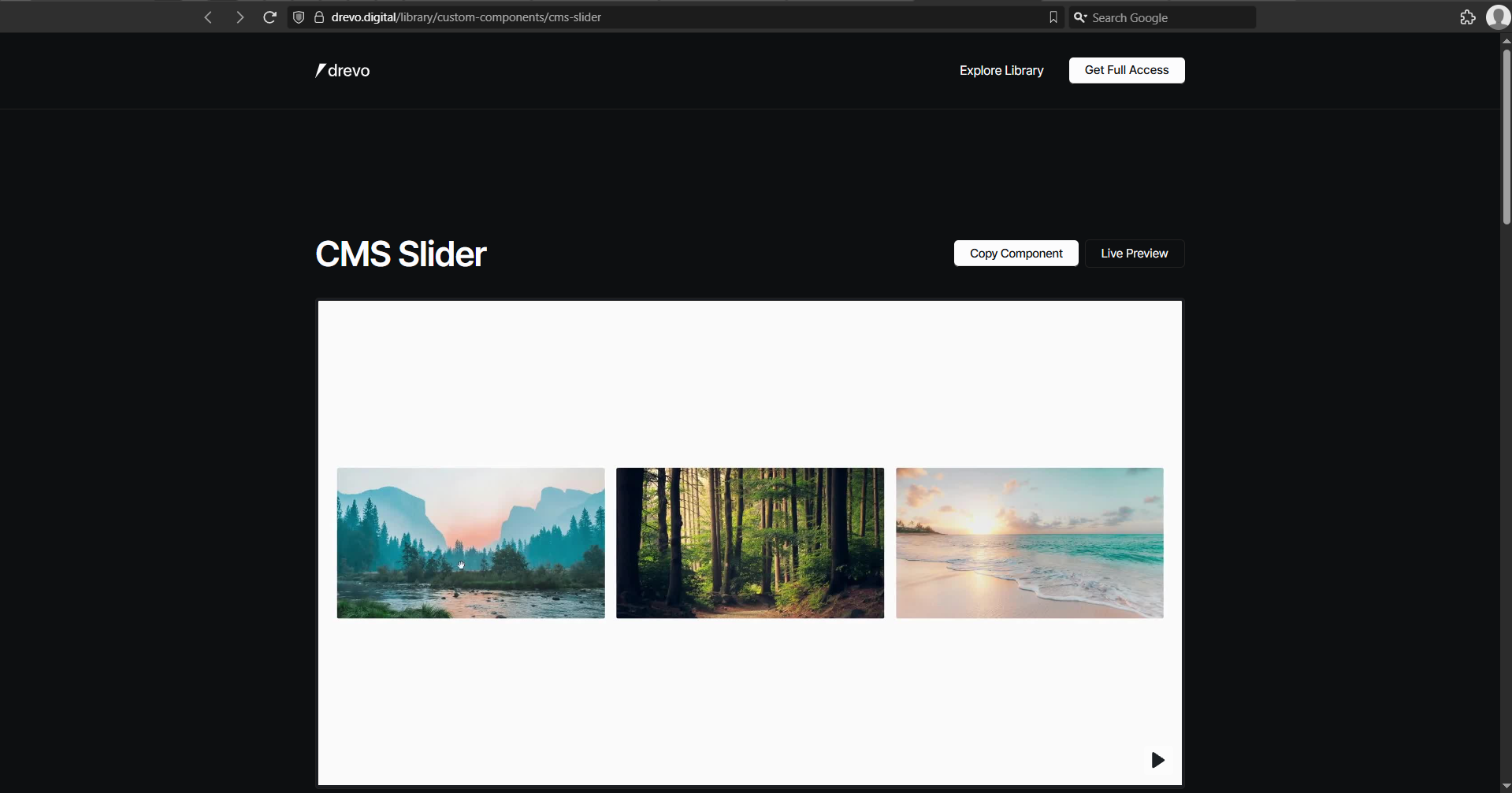
Quick Tip: Some of the Slider styles are dependent on the Craft design system. Make sure to add Craft to your site for maximum compatibility
In the Drevo Library Pro, you have three different CMS Sliders configurations already set up for you. If you want to see all components and plugins that come with the Pro, check it out: https://drevo.digital/library
Unleash the Power: Making the Slider Your Own
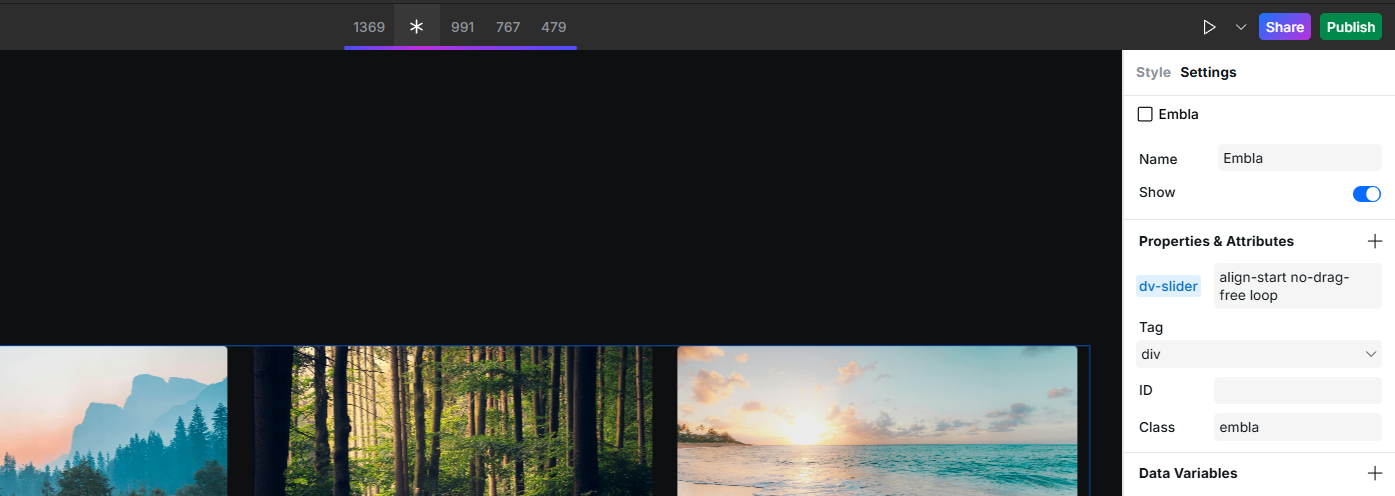
Here’s where you can get creative. The CMS Slider comes with a powerful set of options that you can control with a single attribute: dv-slider. Add this attribute to the main slider container (the element with the embla class) and combine the options below to match your vision.
1. Create an Infinite Showcase with loop
Want to keep your visitors engaged? Use the loop option to make your slider seamlessly circle back to the beginning after the last slide. It’s perfect for creating a continuous gallery of images or logos.
Example: dv-slider="loop"
2. Achieve a Silky-Smooth Feel with drag-free
Enable momentum-based scrolling for a fluid, natural feel on touch devices. When a user swipes, the slider will continue to glide smoothly before settling on a slide.
Example: dv-slider="drag-free"
3. Perfect Your Layout with align
Control exactly how your slides appear within the viewport. This is essential for creating clean layouts.
Use
align-startto snap each slide to the left edge (or right, if using rtl).Use
align-centerto perfectly center each slide in the container.Use
align-endto snap slides to the right edge.
Example: dv-slider="align-center loop"
4. Set the Stage with autoplay
Automatically cycle through your slides to instantly capture attention. You can set the interval in milliseconds.
Example: dv-slider="autoplay-4000" (This will switch slides every 4 seconds).
Pro-Tips for Advanced Customization
Take your slider to the next level with these tips.
Custom Navigation Buttons & Dots
The Drevo Library component already includes previous/next buttons and a container for navigation dots. The script is smart enough to find them using these specific class names:
Buttons:
embla__button--prevandembla__button--nextDots Container:
embla__dots(The dots are generated automatically!)
Styling the Navigation Dots
To match the navigation dots to your site's branding, you can easily override the default styles. Add a Style Sheet in Webstudio and paste the following CSS. The !important flag ensures your custom styles are applied.
[code-block lang="css"]
.embla__dot {
  background-color: var(--background-card-secondary) !important;
  border-radius: 50% !important;
  width: 1rem !important;
  height: 1rem !important;
  border: 1px solid var(--foreground-border) !important;
  cursor: pointer !important;
}

.embla__dot--selected {
  background-color: var(--foreground-primary) !important;
}
[/code-block]
Important Notes
The drag-free option does not work when autoplay is enabled or when navigation controls (buttons/dots) are present.
The component automatically loads the necessary Embla Carousel library, so you don't need to worry about adding it separately.
What Will You Create?
You now have a fully responsive, powerful, and easy-to-customize CMS slider in your Webstudio toolkit. Use it to build beautiful portfolios, dynamic testimonials, or engaging product galleries. For the full CMS Slider docs, read here.
Keep building awesome things!